> ## Documentation Index
> Fetch the complete documentation index at: https://docs.oxla.com/llms.txt
> Use this file to discover all available pages before exploring further.
# Schema Definition
## What is Schema?
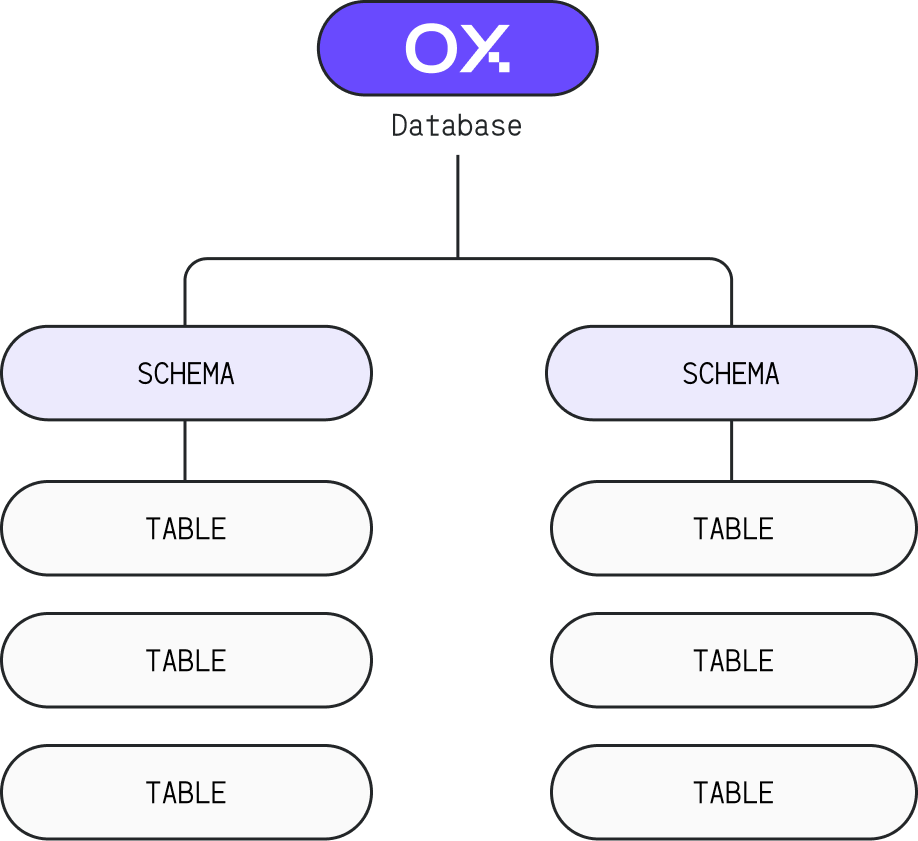
Have you ever wondered how to work with your fellows in one database without interfering with each other? Is it possible to organize the database objects into logical groups which do not collide with the other objects' names?
We can do those things with **Schema**:
A **schema** is a collection of tables. A schema also contains views, indexes, sequences, data types, operators, and functions. We support multiple schemas. For example, you can have a database named `oxla` and have multiple schemas based on your needs, like `auth`, `model`, `business`, etc.
 ## Default Schema in Oxla
By default, the `public` schema is used in Oxla. When unqualified `table_name` is used, that `table_name` is equivalent to `public.table_name`. It also applies to `CREATE`, `DROP`, and `SELECT TABLE` statements.
Furthermore, you can create multiple schemas per your needs.
## Schema Usage Scenarios
### 1. Create a Schema
The basic syntax of creating a schema is as follows:
```sql theme={null}
CREATE SCHEMA [IF NOT EXISTS] schema_name;
```
* `schema_name` is the schema name you are going to create.
* `IF NOT EXISTS` is an optional parameter to avoid errors if the schema already exists.
### 2. Create a Table in Schema
The syntax to create a table in a specified schema is as follows:
```sql theme={null}
CREATE TABLE schema_name.table_name(
...
);
```
* `schema_name` is the schema that you have created.
* `table_name` is the table name you are going to create.
### 3. Select a Table in Schema
After creating the table and inserting some data, display all rows with the syntax below:
```sql theme={null}
SELECT * FROM schema_name.table_name;
```
* `schema_name` is the name of the schema.
* `table_name` is the name of the table you want to display.
### 4. Drop the Schema
**Option 1**: To drop an empty schema where no objects remain in it, use the command below:
```sql theme={null}
DROP SCHEMA [IF EXISTS] schema_name;
```
* `schema_name` is the schema name you are going to create.
* `IF EXISTS` is an optional parameter to avoid errors if the schema does not exist.
**Option 2**: Tables reside in a schema, so it is impossible to drop a schema without also dropping the tables. With the command below, you will also drop the schema with the tables.
```sql theme={null}
DROP SCHEMA schema_name CASCADE;
```
## Examples
### Creating Schema
1. First, connect to Oxla and create a schema as shown below:
```sql theme={null}
CREATE SCHEMA oxlarefs;
```
2. Next, create a table in the above schema with the following details:
```sql theme={null}
CREATE TABLE oxlarefs.functions(
id int,
function_name text,
active bool
);
INSERT INTO oxlarefs.functions(id, function_name, active)
VALUES
('1111', 'Numeric', 'TRUE'),
('2222', 'Text', 'TRUE'),
('3333', 'Timestamp', 'TRUE'),
('4444', 'JSON', 'TRUE'),
('5555', 'Boolean', 'TRUE');
```
3. You can verify and show the table made with the command below:
```sql theme={null}
SELECT * FROM oxlarefs.functions;
```
4. You will get the following result:
```sql theme={null}
+------+---------------+---------+
| id | function_name | active |
+------+---------------+---------+
| 1111 | Numeric | t |
| 2222 | Text | t |
| 3333 | Timestamp | t |
| 4444 | JSON | t |
| 5555 | Boolean | t |
+------+---------------+---------+
```
### Creating Schema Using IF NOT EXISTS
To avoid errors when the schema already exists, use the `IF NOT EXISTS` option. Here is how it works:
#### Example without IF NOT EXISTS
1. First, create the schema without using the `IF NOT EXISTS` option.
```sql theme={null}
CREATE SCHEMA oxladb;
```
Output:
```sql theme={null}
CREATE SCHEMA
```
2. If you attempt to create the schema again without using `IF NOT EXISTS`, it will result in an error.
```sql theme={null}
CREATE SCHEMA oxladb;
```
Output:
```sql theme={null}
ERROR: Schema: oxladb already exists
```
#### Example with IF NOT EXISTS
Now, create the schema using the `IF NOT EXISTS` option to avoid the error.
```sql theme={null}
CREATE SCHEMA IF NOT EXISTS oxladb;
```
Using `IF NOT EXISTS` allows the query to create a schema even if it already exists.
```sql theme={null}
CREATE
```
### Dropping Schema
Use the command below to delete the schema and also the tables in it.
```sql theme={null}
DROP SCHEMA oxlarefs CASCADE;
```
Another case is if there is no table or object created inside the schema, you can use the following command to drop the schema.
```sql theme={null}
DROP SCHEMA oxlarefs;
```
### Dropping Schema using IF EXISTS
#### Example without IF EXISTS
1. First, drop the schema without using the `IF EXISTS` option.
```sql theme={null}
DROP SCHEMA oxladb;
```
Output:
```sql theme={null}
DROP
```
2. If you attempt to drop the schema again without using `IF EXISTS`, it will result in an error.
```sql theme={null}
DROP SCHEMA oxladb;
```
Output:
```sql theme={null}
ERROR: schema "oxladb" does not exist
```
#### Example with IF EXISTS
Now, drop the schema using the `IF EXISTS` option.
```sql theme={null}
DROP SCHEMA IF EXISTS oxladb;
```
Using `IF` EXISTS allows the query to succeed even if the schema does not exist.
```sql theme={null}
DROP
```
## Default Schema in Oxla
By default, the `public` schema is used in Oxla. When unqualified `table_name` is used, that `table_name` is equivalent to `public.table_name`. It also applies to `CREATE`, `DROP`, and `SELECT TABLE` statements.
Furthermore, you can create multiple schemas per your needs.
## Schema Usage Scenarios
### 1. Create a Schema
The basic syntax of creating a schema is as follows:
```sql theme={null}
CREATE SCHEMA [IF NOT EXISTS] schema_name;
```
* `schema_name` is the schema name you are going to create.
* `IF NOT EXISTS` is an optional parameter to avoid errors if the schema already exists.
### 2. Create a Table in Schema
The syntax to create a table in a specified schema is as follows:
```sql theme={null}
CREATE TABLE schema_name.table_name(
...
);
```
* `schema_name` is the schema that you have created.
* `table_name` is the table name you are going to create.
### 3. Select a Table in Schema
After creating the table and inserting some data, display all rows with the syntax below:
```sql theme={null}
SELECT * FROM schema_name.table_name;
```
* `schema_name` is the name of the schema.
* `table_name` is the name of the table you want to display.
### 4. Drop the Schema
**Option 1**: To drop an empty schema where no objects remain in it, use the command below:
```sql theme={null}
DROP SCHEMA [IF EXISTS] schema_name;
```
* `schema_name` is the schema name you are going to create.
* `IF EXISTS` is an optional parameter to avoid errors if the schema does not exist.
**Option 2**: Tables reside in a schema, so it is impossible to drop a schema without also dropping the tables. With the command below, you will also drop the schema with the tables.
```sql theme={null}
DROP SCHEMA schema_name CASCADE;
```
## Examples
### Creating Schema
1. First, connect to Oxla and create a schema as shown below:
```sql theme={null}
CREATE SCHEMA oxlarefs;
```
2. Next, create a table in the above schema with the following details:
```sql theme={null}
CREATE TABLE oxlarefs.functions(
id int,
function_name text,
active bool
);
INSERT INTO oxlarefs.functions(id, function_name, active)
VALUES
('1111', 'Numeric', 'TRUE'),
('2222', 'Text', 'TRUE'),
('3333', 'Timestamp', 'TRUE'),
('4444', 'JSON', 'TRUE'),
('5555', 'Boolean', 'TRUE');
```
3. You can verify and show the table made with the command below:
```sql theme={null}
SELECT * FROM oxlarefs.functions;
```
4. You will get the following result:
```sql theme={null}
+------+---------------+---------+
| id | function_name | active |
+------+---------------+---------+
| 1111 | Numeric | t |
| 2222 | Text | t |
| 3333 | Timestamp | t |
| 4444 | JSON | t |
| 5555 | Boolean | t |
+------+---------------+---------+
```
### Creating Schema Using IF NOT EXISTS
To avoid errors when the schema already exists, use the `IF NOT EXISTS` option. Here is how it works:
#### Example without IF NOT EXISTS
1. First, create the schema without using the `IF NOT EXISTS` option.
```sql theme={null}
CREATE SCHEMA oxladb;
```
Output:
```sql theme={null}
CREATE SCHEMA
```
2. If you attempt to create the schema again without using `IF NOT EXISTS`, it will result in an error.
```sql theme={null}
CREATE SCHEMA oxladb;
```
Output:
```sql theme={null}
ERROR: Schema: oxladb already exists
```
#### Example with IF NOT EXISTS
Now, create the schema using the `IF NOT EXISTS` option to avoid the error.
```sql theme={null}
CREATE SCHEMA IF NOT EXISTS oxladb;
```
Using `IF NOT EXISTS` allows the query to create a schema even if it already exists.
```sql theme={null}
CREATE
```
### Dropping Schema
Use the command below to delete the schema and also the tables in it.
```sql theme={null}
DROP SCHEMA oxlarefs CASCADE;
```
Another case is if there is no table or object created inside the schema, you can use the following command to drop the schema.
```sql theme={null}
DROP SCHEMA oxlarefs;
```
### Dropping Schema using IF EXISTS
#### Example without IF EXISTS
1. First, drop the schema without using the `IF EXISTS` option.
```sql theme={null}
DROP SCHEMA oxladb;
```
Output:
```sql theme={null}
DROP
```
2. If you attempt to drop the schema again without using `IF EXISTS`, it will result in an error.
```sql theme={null}
DROP SCHEMA oxladb;
```
Output:
```sql theme={null}
ERROR: schema "oxladb" does not exist
```
#### Example with IF EXISTS
Now, drop the schema using the `IF EXISTS` option.
```sql theme={null}
DROP SCHEMA IF EXISTS oxladb;
```
Using `IF` EXISTS allows the query to succeed even if the schema does not exist.
```sql theme={null}
DROP
```